
Key facts
Start here
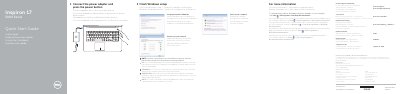
Dell Inspiron 17 5000 Series Quick Start Guide
This quick start guide helps set up Windows on the Dell Inspiron 17 5000 Series, including connecting power, creating a password, and connecting to a network.
It also identifies the computer's features and shortcut keys and provides product support, manual, and regulatory information.
Dell Inspiron 17 5000 specifications
| Model | Inspiron 17-5767 |
|---|---|
| Processor | 第 7 代 Intel Core i3/i5/i7, 第 6 代 Intel Core i3, Intel Pentium Dual Core |
| Memory slots | 两个 SODIMM 插槽 |
| Memory speed | 高达 2133 MHz |
| Weight | 3.09 千克(6.81 磅) |
Source: Dell Inspiron 17 5000 Setup and Specifications User Manual
All Dell Inspiron 17 5000 documents by type
Day-to-day operation, settings and troubleshooting. Start here if the product is already set up.
Disassembly, diagnostics and part numbers, for repair.
- Dell Inspiron 17 5000 Series (Inspiron 17-5759) Service Manual 104 p
- Dell Inspiron 17 5000 Series Laptop Service Manual 103 p
- Dell Inspiron 17 5000 Series Inspiron 17–5759 Service Manual 109 p
- Dell Inspiron 17 5000 Series Laptop Service Manual 91 p
- Dell Inspiron 17 5000 Series Laptop Service Manual 121 p
- Dell Inspiron 17 5000 Series Service Manual 95 p
- Dell Inspiron 17 5000 Series Service Manual 98 p
- Dell Inspiron 17 5000 (5758) Laptop Service Manual 113 p
- Dell Inspiron 17 5000 Series Service Manual 93 p
- Dell Inspiron 17 5000 Series Owner's Manual 93 p
The shortest path to a working setup, usually only a few pages.
Questions answered in these manuals
How do I set up the Dell Inspiron 17 5000?
Connect the power adapter, press the power button, and complete the operating system setup for Windows or Ubuntu.
From: Dell Inspiron 17 5000 Setup and Specifications User Manual
How do I force the computer to shut down?
Hold the power button for 4 seconds to force the computer to shut down.
From: Dell Inspiron 17 5000 Setup and Specifications User Manual
What should I do before removing internal components?
Save and close all open files, exit all open applications, shut down the computer, disconnect power and cables, and remove media cards and discs.
From: Dell Inspiron 17 5000 Series (Inspiron 17-5759) Service Manual
How do I refresh the BIOS?
Turn on the computer, go to Dell support, enter the service tag, download the BIOS update file, and follow the on-screen instructions.
From: Dell Inspiron 17 5000 Series (Inspiron 17-5759) Service Manual
How do I finish Windows setup?
Connect the power adapter, press the power button, set a Windows password, and connect to your network.
Where can I learn about features and advanced options?
Click Start, then All Programs, then Dell Help Documentation.