
Key facts
Start here
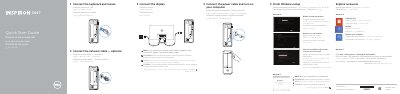
Dell Inspiron 3647 Windows 7 Quick Start Guide
This Quick Start Guide for the Dell Inspiron 3647 computer explains the initial setup steps: connect the keyboard and mouse, optionally connect the network cable, connect the power cable and turn on the computer, and connect the display.
It also covers finishing Windows setup, enabling security and updates, signing in to a Microsoft account, and connecting to your network. Computer features and Dell support contacts are listed at the end.
Dell Inspiron 3647 specifications
| USB 2.0 ports | 2 |
|---|---|
| USB 2.0 ports | 4 |
| USB 3.0 ports | 2 |
| Audio ports | 3 |
All Dell Inspiron 3647 documents by type
The shortest path to a working setup, usually only a few pages.
Disassembly, diagnostics and part numbers, for repair.
- Dell Inspiron 3647 Service Manual 52 p
- Dell Inspiron 3647 Service Manual 56 p
- Dell Inspiron 3647 Service Manual 51 p
- Dell Inspiron 3647 Computer Owner's Manual 55 p
- Dell Inspiron 3647 Computer Owner's Manual 57 p
- Dell Inspiron 3647 Service Manual 56 p
- Dell Inspiron 3647 Owner's Manual 52 p
- Dell Inspiron 3647 Service Manual 54 p
Questions answered in these manuals
How do I connect the display if the computer has a discrete graphics card?
Connect the display to the discrete graphics card.
Can I use the @ symbol in my Windows password?
No, do not use the @ symbol in your password.
What steps must be taken before starting work inside the computer?
You must save and close all open files, shut down the computer, disconnect all power and cables, and ground the system board by pressing the power button for 5 seconds.
What symbol should not be used in the password?
Do not use the @ symbol in your password.
How many USB 2.0 ports are on the front I/O panel?
There are two USB 2.0 ports on the front I/O panel.
How do I connect the display to my Dell Inspiron 3647?
Connect the display to the discrete graphics card if your computer has one, or to the HDMI or VGA ports on the front panel.