
Key facts
Start here
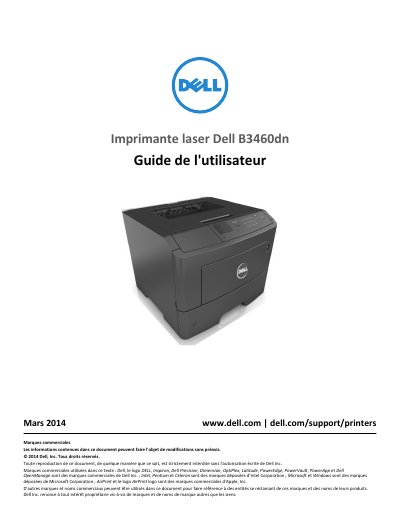
Dell B3460dn Laser Printer User Guide
This French-language user guide for the Dell B3460dn laser printer covers safety instructions, printer setup and control panel use, paper and specialty media loading, printing, printer menus, maintenance, and troubleshooting.
It also describes installing internal and hardware options, connecting cables, using the printer on a network, mobile printing with AirPrint and Dell Mobile Print, securing the printer, and clearing paper jams. This manual is written in French.
Dell B3460dn specifications
| Operating temperature | 16 to 32°C (60 to 90°F) |
|---|---|
| Storage temperature | -20 to 40°C (-4 to 104°F) |
| Optional paper tray capacity | Up to two 550-sheet trays |
| Right clearance | 305 mm (12 in) |
All Dell B3460dn documents by type
Day-to-day operation, settings and troubleshooting. Start here if the product is already set up.
- Dell B3460dn Laser Printer User Guide 168 p
- Dell B3460dn Laser Printer User's Guide 161 p
- Dell B3460dn Laser Printer User Guide 165 p
- Dell B3460dn Laser Printer User's Guide 153 p
- Dell B3460dn Laser Printer User Guide 169 p
- Dell B3460dn Laser Printer User's Guide 158 p
- Dell B3460dn Laser Printer User's Guide 166 p
Questions answered in these manuals
How can I print from a mobile device?
You can print from a mobile device using AirPrint or Dell Mobile Print.
What should I do before moving the printer?
Turn off the printer using the switch, disconnect the power cable, and remove all wires and cables.
Can I print from a mobile device?
The guide describes printing from a mobile device using AirPrint or Dell Mobile Print.
How do I prepare the printer for moving?
Turn off the printer with the power switch, unplug the power cord, disconnect all cables, and remove an optional tray if one is installed.
Where can I find the user guide and quick reference guide?
They may be available on the Software and Documentation CD; for more information, visit www.dell.com/support/manuals.
What should I do before moving the printer?
Turn off the printer with the switch and unplug the power cord, disconnect all printer cables, remove an optional tray if installed, use the handles on both sides, and make sure fingers are not under the printer.