
Key facts
Start here
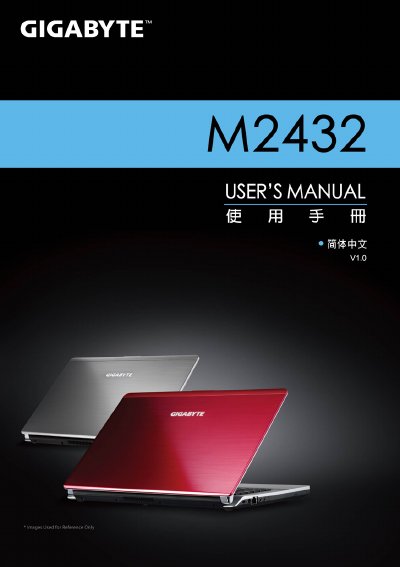
Gigabyte M2432 Laptop Quick Start Guide
This guide walks you through the initial installation of the battery, power adapter, and first‑time startup of the Gigabyte M2432 notebook. It also explains the use of quick‑key functions and the Smart Manager utilities that help configure BIOS, system recovery, and power settings.
The document includes a hardware overview with details on the processor, display, memory, storage, ports, wireless connectivity, camera, battery, dimensions and weight. It also describes the Smart Switch for switching Windows bit versions and the Smart Charge feature for USB power management. This manual is written in Chinese.
Gigabyte M2432 specifications
| Processor | Second‑generation Intel® Core™ processor |
|---|---|
| Display | 14" 16:9 HD Ready LCD, 1366×768 resolution |
| Memory | DDRIII SO‑DIMM, 2 slots, up to 8 GB |
| Storage | 500/640/750 GB 2.5" SATA HDD, 5400 rpm |
| Battery | Li‑polymer, 3600 mAh, 11.1 V, 39.96 Wh |
| Dimensions | 328.3 mm × 230 mm × 26.7 mm |
All Gigabyte M2432 documents by type
Day-to-day operation, settings and troubleshooting. Start here if the product is already set up.
The shortest path to a working setup, usually only a few pages.
Questions answered in these manuals
How do I install the battery in the Gigabyte M2432?
Insert the battery and push the latch to the LOCK position.
How can I switch between 32‑bit and 64‑bit Windows on this laptop?
Use the GIGABYTE Smart Switch program to select the desired bit version and follow the prompts.
How do I install the battery?
First insert the battery, then push the latch to the LOCK position.
How do I launch Smart Manager?
Double‑click the Smart Manager shortcut on the desktop to start the application.
How do I access System Recovery?
Select "System Recovery" from the Smart Recovery menu, then choose the desired option such as Start, Advanced Option, or Exit.
How can I enter the BIOS Setup Utility?
Choose "BIOS Setup Utility" from the menu to configure BIOS settings.