
This manual introduces how to use Gigabyte M2432 notebook, including power on, use power, connect peripherals, use function keys, etc.
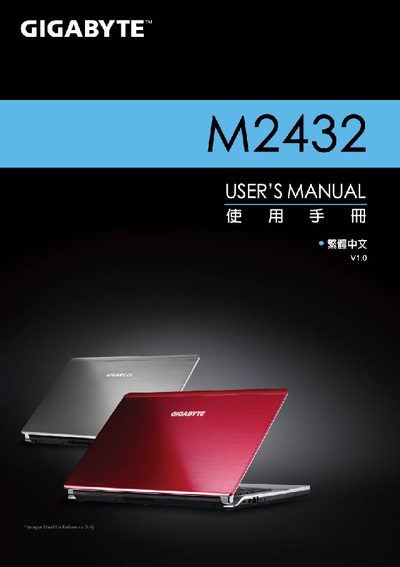
This manual guides first‑time setup of the Gigabyte M2432 notebook, covering battery installation, power‑adapter connection, initial power‑on procedure, and a detailed hardware layout with labeled ports, status LEDs, and quick‑key functions.
It also explains the built‑in utilities—Smart Manager, Smart Switch, and Smart Recovery—for BIOS configuration, switching between 64‑bit and 32‑bit Windows, and restoring the system to factory defaults, and lists the full hardware specifications of the device. This manual is written in Chinese.
| Processor | Second‑generation Intel® Core™ processor |
|---|---|
| Operating System | Microsoft® Windows® 7 compatible |
| Display | 14" 16:9 Full HD LCD, 1366×768, LED backlight |
| Memory | DDRIII SO‑DIMM, 2 slots (max 4 GB × 2) |
| Chipset | Intel® HM65 high‑speed chipset |
| Graphics | Intel® HD Graphics |
| Hard Drive | 500/640/750 GB 2.5" SATA 5400 rpm |
| Optical Drive | Ultra‑thin DVD‑Super Multi Dual‑Layer |
| Audio | 1.5 W speakers × 2 with built‑in microphone |
| Ports | USB × 2, eSATA/USB, HDMI, D‑sub, RJ45, audio jacks, card reader |
| Networking | Gigabit Ethernet 10/100/1000 Mbps, Wi‑Fi 802.11b/g/n, Bluetooth v3.0+HS |
| Battery | Li‑polymer 3600 mAh, 11.1 V, 39.96 Wh |
| Dimensions | 328.3 mm × 230 mm × 26.7 mm (W × D × H) |
First insert the battery, then push the latch to the LOCK position.
Double‑click the Smart Manager shortcut on the desktop to start the application.
Fn+F2 toggles the wireless network adapter on or off.