
Key facts
Start here
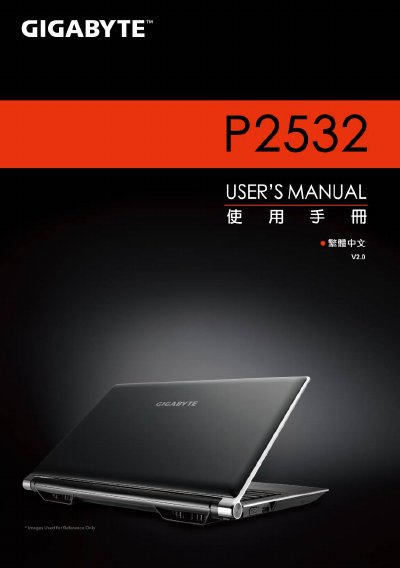
Gigabyte P2532 Laptop User Manual
This manual provides step‑by‑step instructions for setting up and using the Gigabyte P2532 notebook, covering everything from battery insertion to operating system configuration. It also includes safety notes and warranty information.
Key sections cover battery installation, power connection, port overview, hot‑key shortcuts, 3D Vision depth adjustment, and Gigabyte utilities such as Smart Manager, Smart Switch, Smart Recovery, and Smart Setup. The specifications page lists the hardware components and dimensions of the laptop. This manual is written in Chinese.
Gigabyte P2532 specifications
| Processor | Intel Core i7 |
|---|---|
| Operating System | Microsoft Windows 7 compatible |
| Display | 15.6" Full HD (1920×1080) LCD |
| Memory | DDRIII SO‑DIMM, up to 8 GB (2 × 4 GB) |
| Graphics | NVIDIA GeForce GT550M 2 GB |
| Battery | Li‑ion 6‑cell, 5200 mAh |
| Dimensions | 392 mm × 263 mm × 27.6‑35.1 mm |
| Weight | ≈2.6 kg (including battery) |
All Gigabyte P2532 documents by type
Day-to-day operation, settings and troubleshooting. Start here if the product is already set up.
Questions answered in these manuals
How do I install the battery?
Align the battery with the slot, insert it, rotate until you hear a click, then push the lock lever to the LOCK position.
How can I switch between 32‑bit and 64‑bit Windows?
Open the Gigabyte Smart Switch utility and use the toggle to select either the 64‑bit or 32‑bit mode, then confirm to restart the system.
How do I install the battery?
Align the battery with the slot, rotate it down until you hear a click, then push the lock lever to the LOCK position.