
Key facts
- Brand
- Grandstream
- Model
- GXV3615WP_HD
- Category
- Other
- Documents
- 3
- Languages
- ZH · EN
- Last added
- 2026-10-12
Start here
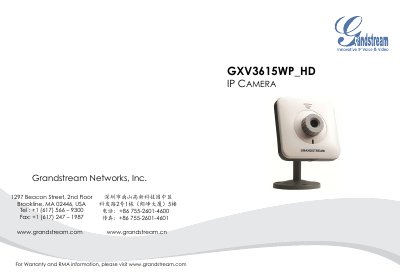
Grandstream GXV3615WP_HD IP Camera Quick Start Guide
This Quick Start Guide provides step‑by‑step instructions for installing and configuring the Grandstream GXV3615WP_HD IP camera. It includes safety precautions, package contents, and two power options – a 12 V power adapter (Option A) or Power over Ethernet (Option B).
The guide explains how to connect the camera to a network, set up Wi‑Fi, access the web interface, and configure basic parameters such as static IP address and default login credentials. Lens specifications and mounting options are also listed. This manual is written in Chinese.
Grandstream GXV3615WP_HD specifications
| Image Sensor | 1/3.2", 2 million pixels CMOS, 1600H x 1200V pixels |
|---|---|
| Lens | 1/3", M12, f=4.2mm focal length, F1.8 |
| Minimum Illumination | 0.5Lux |
| Video Encoding | H.264, MJPEG, JPGE |
| Max Resolution | 1600x1200 |
| Network Interface | 10M/100M adaptive Ethernet, supports PoE (IEEE 802.3af class 0) |
| Wi-Fi | Supports, built-in antenna (802.11b/g/n) |
| Dimensions | 90mm(W) x 45mm(H) x 90mm(L) |
| Weight | 0.568KG (packaging total weight) |
All Grandstream GXV3615WP_HD documents by type
Day-to-day operation, settings and troubleshooting. Start here if the product is already set up.
The shortest path to a working setup, usually only a few pages.
Questions answered in these manuals
Which browsers are supported for login?
The device supports Internet Explorer (IE) and Firefox browsers.
How do I view the video in Firefox?
Users must download and manually install a Firefox Plugin to watch the video.
What are the default login credentials for the camera?
Both the default username and password are set to “admin”.
How can I access the camera if it does not obtain an IP via DHCP?
Use the default static IP address 192.168.1.168 and configure your PC to the same subnet.
How can I reset the GXV3615WP_HD to factory defaults?
Press the reset button by inserting a pin into the hole on the back panel and hold for about 15 seconds until the device reboots, or use the reset option in the web interface.
What power options does the camera support?
The camera can be powered with a 12 V DC adapter or via Power over Ethernet (PoE).