
This guide describes how to set up the keyboard and mouse, connect the power cable and press the power button, finish Windows setup, enable security and updates, sign in to your Microsoft account or create a local account, connect to your network, and explore resources.
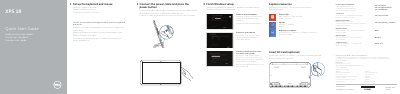
This guide helps you set up your wireless keyboard and mouse with your Dell XPS 18. Connect the power cable and press the power button to begin. Follow steps to enable security and updates, sign in to your Microsoft account, and connect to your network. Optional accessories like an SD card or powered stand are also covered.
The guide includes multilingual instructions and diagrams for components like microphones, camera, USB ports, and battery status indicators. It also references regulatory compliance and service tag information for support and warranty purposes.
The power input voltage is 100 V CA–240 V CA.
The output voltage is 19,50 V CC and the output current consumption is 3,34 A.
The docking-status light on the powered stand will turn on.