
This document provides instructions for using the Logitech® Wireless Mouse M525 and its advanced features. For Mac® OS X users, it addresses the issue of the Keyboard Assistant window appearing when plugging in the Unifying receiver. Additionally, it mentions the optional software download for enabling side-to-side scrolling and middle button features.
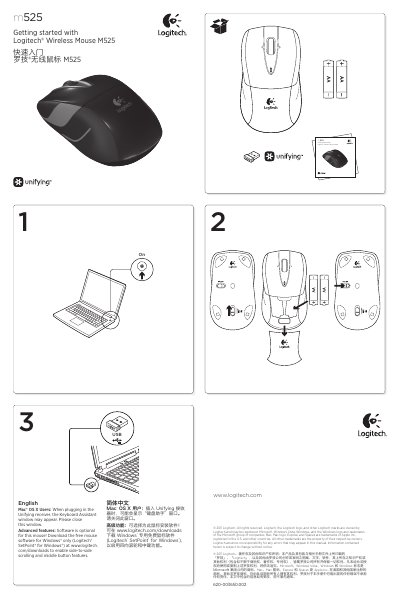
This guide introduces the Logitech M525 wireless mouse and walks you through the initial setup steps, including installing the Unifying receiver, downloading optional SetPoint software, and configuring basic functions such as side‑to‑side scrolling and the middle button.
It also provides troubleshooting tips for common issues, battery replacement instructions, and details on the mouse’s features like the tilt wheel navigation, battery LED indicators, and built‑in storage for the Unifying receiver.
| Battery type | Two AA alkaline batteries |
|---|---|
| Battery LED indicator | Flashes green when powered on, red when battery low |
| Buttons | Left and right mouse buttons |
| Scroll wheel | Standard scroll wheel |
| Middle button function | Depends on operating system and application |
| Tilt wheel navigation | Tilt right to go forward, tilt left to go back (Windows only) |
| On/Off switch | Slider switch |
| Battery door release | Button to release battery cover |
| Unifying receiver storage | Receiver can be stored inside the mouse when not in use |
Open the battery compartment, check the orientation, and replace the two AA alkaline batteries if needed.
Plug the Unifying receiver into a USB port, download and run the Logitech Unifying software, then follow the on‑screen instructions to pair the mouse.