
This manual introduces the names and functions of each part of the wireless trackball mouse, and details how to connect to a PC, turn on the mouse power, replace the battery, clean the mouse, and the mouse's power-saving mode.
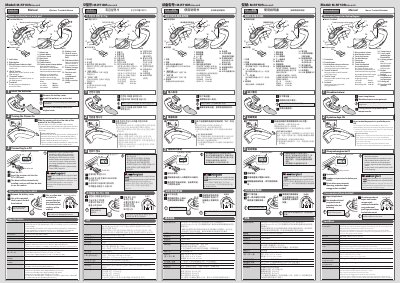
This manual explains how to install batteries, connect the mouse to a PC via USB, and use the included ELECOM Mouse Assistant software. It also covers cleaning the optical sensor and power-saving mode. The mouse supports Windows and macOS operating systems and uses 2.4 GHz radio frequency for wireless operation.
The manual includes specifications such as resolution (500/1000/1500 dpi), dimensions, supported OS, and battery life. It warns users not to use sharp objects near the sensor and to avoid touching USB terminals to prevent damage or injury.
| Resolution | 500/1000/1500 dpi (switchable) |
|---|---|
| Interface | USB |
| Radio Frequency | 2.4 GHz band |
| Supported OS | Windows® 10, Windows® 8.1, Windows® RT8.1, Windows® 7, macOS Mojave(10.14) |
| Battery Type | Any two of AAA alkaline batteries, AAA manganese batteries, AAA type nickel-metal hydride batteries |
| Operational Temperature | 5°C to 40°C |
| Dimensions | Mouse: Approximately 41 mm × 112 mm × 57 mm |
Insert the receiver unit into the PC's USB port. The driver will be automatically installed, and you will then be able to use the mouse.
The LED will blink red for a fixed time when the remaining battery is low.
Use a cotton bud or similar to remove dust accumulated on the three contact surfaces of the red ball.
When the mouse is left untouched for a fixed period of time while the power is ON, it automatically shifts to power-saving mode. The mouse is released from the power-saving mode when it is touched.