
The document is a user manual for the Philips SPT5701 wireless desktop set, describing the features and characteristics of the product.
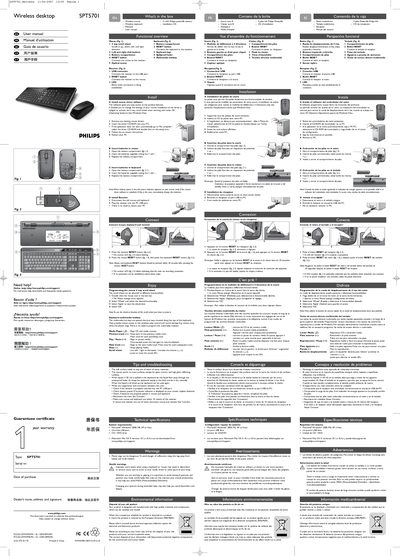
This manual covers everything you need to get the Philips SPT5701 wireless mouse and keyboard up and running. It starts with a list of items in the box, shows the functional overview of the mouse, keyboard and receiver, and walks you through driver installation, battery replacement, and receiver connection.
Later sections explain how to program the 4‑way scroll wheel, use the keyboard multimedia hotkeys, and troubleshoot common issues. Technical specifications, system requirements, health warnings, environmental disposal information, and FCC compliance details are also included.
| Model | SPT5701 |
|---|---|
| Supported operating systems | Microsoft Windows 2000, ME, XP, Vista; Mac OS X 10.1‑10.4 (download) |
| USB requirement | One free USB port |
| Battery type | 4 × AA Philips Powerlife batteries |
| Maximum wireless range | Within 10 m of the receiver |
| FCC ID | OYM‑PK5701 |
Remove any existing mouse drivers, insert the driver CD‑ROM, run the setup program, and restart the PC.
Open the battery compartment, insert the supplied AA batteries with the correct polarity, and close the compartment.
Press the receiver RESET button, then press the mouse and keyboard RESET buttons within 30 seconds; the receiver LED will blink while searching for the devices.
Double‑click the mouse icon in the task bar, open the Wheel settings, choose the desired function, click Apply, then OK.