
This document provides instructions for installing and connecting the SPK1000SC wired PS/2 keyboard, as well as adjusting the keyboard legs and connecting the palm rest.
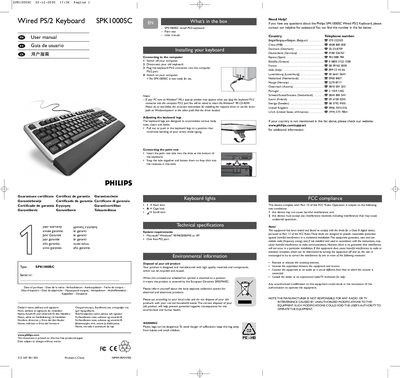
This manual explains how to install the Philips SPK1000SC wired PS/2 keyboard, including connecting the PS/2 connector, adjusting the keyboard legs, and attaching the palm rest. It also describes the keyboard indicator lights and provides system requirements.
Additional sections cover environmental disposal, safety warnings, FCC compliance, and contact information for technical support across multiple countries.
| Supported operating systems | Microsoft® Windows® 95/98/2000/ME or XP |
|---|---|
| Required port | One free PS2 port |
| Num lock indicator | 1 = Num lock |
| Caps lock indicator | A = Caps lock |
| Scroll lock indicator | f = Scroll lock |
Turn off the computer, disconnect any existing keyboard, plug the keyboard’s PS/2 connector into a free PS/2 port, then turn the computer back on.
The lights show the status of Num lock (1), Caps lock (A), and Scroll lock (f).
Pull out or push in the keyboard legs to a position that minimizes wrist bending while typing.
Insert the palm‑rest tabs into the slots at the bottom of the keyboard and snap them together until they click into place.