
This manual details the features and functions of the UC-2000 and UC-2000L USB Docking Stations, as well as how to connect standard desktop peripherals, such as keyboards, mice, modems, printers, scanners, etc.
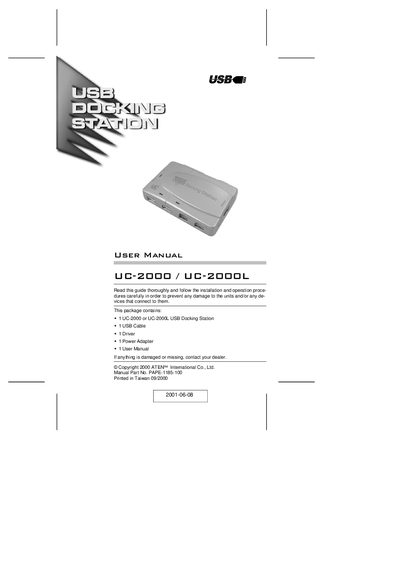
The UC-2000 and UC-2000L are USB docking stations that let you connect standard desktop peripherals—keyboard, mouse, printer, scanner, and more—to a notebook via a single USB cable. The UC-2000L adds an Ethernet port for network connectivity.
The manual covers package contents, hardware layout, LED indicators, step‑by‑step installation, driver setup, troubleshooting tips, and regulatory information. It also lists the technical specifications of the docking stations.
| Power Consumption | AC 5 V; 540 mA |
|---|---|
| Serial Port | 1 × DB‑9 Male |
| Parallel Port | 1 × DB‑25 Female |
| PS/2 Keyboard Port | 1 × 6‑pin mini‑DIN Female |
| USB Upstream Port | Type B |
| USB Downstream Ports | 2 × Type A |
| Ethernet Port (UC‑2000L only) | RJ‑45 10Base‑T |
| USB Cable Length | 1.8 m (6 ') |
| Weight | 150 g |
| Dimensions (L × W × H) | 111.5 × 72 × 27.9 mm |
Connect the USB cable, then Windows will detect the unit and launch the Add New Hardware Wizard. Follow the prompts to locate the driver disk, select the appropriate folder (Win2000 or Win98), and complete the installation.
The Power LED lights orange when the unit receives power. USB port LEDs turn green when a peripheral is connected and receiving power; they turn off if an over‑current condition occurs.
Insert the driver disk, open Windows Explorer, navigate to the driver folder (e.g., the Win98 folder), and run "unistall.exe".