
This document describes the features and characteristics of Philips brand products, including SmartImage, SmartKolor, SmartContrast, SmartSharpness, etc. It also provides instructions on how to use SmartControl Premium and SmartDesktop.
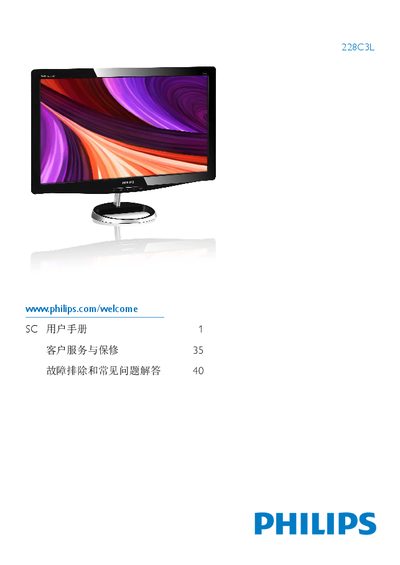
This manual guides users of the Philips 228C3L SC monitor through safe installation, power connection, and basic operation. It includes safety warnings, environmental limits, and instructions for mounting and connecting the display to a PC, workstation or Mac.
The document also explains the On‑Screen Display (OSD) menu, color‑temperature presets, SmartControl features, and how to troubleshoot common issues such as image retention or panel defects. Warranty conditions and recycling information are provided at the end. This manual is written in Chinese.
| Operating Temperature | 0‑40 °C (32‑95 °F) |
|---|---|
| Relative Humidity | 20‑80 % RH |
| Power Input | AC/DC adapter APD‑DA‑36Q12‑AAAAIDarfon‑BC36‑1201‑06 |
| HDMI Input | Available |
| Native Resolution | 1920 × 1080 @ 60 Hz |
Yes, you can change the color settings through the OSD control.
Yes, the monitor can be mounted on a VESA‑compatible bracket using the standard VESA mounting holes on the back.
Yes, the monitor is fully compatible with standard PCs, Macs and workstations.
Enable the screen‑refresh saver; image retention usually disappears after power‑off, but severe cases are not covered by warranty.