
This quick start guide will show you how to use the D-Link DIR-615 Wireless N Router. It includes all the information you need to install the router, including connecting cables, configuring the wireless network, and connecting to the Internet.
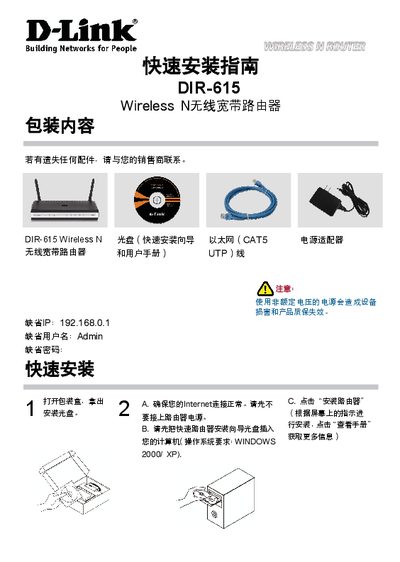
The guide walks you through unpacking the DIR‑615, connecting the power adapter, Ethernet cable, and using the quick‑install CD or web interface. It lists the default network settings – IP address 192.168.0.1, username Admin, and a blank password – and shows how to access the router’s web configuration page.
A troubleshooting section covers common issues such as resetting the device to factory defaults, recovering a forgotten SSID or password, and checking LED indicators. Contact information for D‑Link technical support in China is also provided. This manual is written in Chinese.
| Default IP address | 192.168.0.1 |
|---|---|
| Default username | Admin |
| Wireless standard | Wireless N |
Connect a PC to the router with an Ethernet cable, open a web browser and go to http://192.168.0.1, then log in with the default username Admin and a blank password.
Make sure the router is powered on, then press and hold the reset button on the back for about 20 seconds.
For cable users, ensure the MAC‑clone option is selected in the setup wizard; for ADSL users, verify the ISP credentials and service status.