
Key facts
- Brand
- Logitech
- Model
- BCC950
- Category
- Other Electronics
- Documents
- 2
- Languages
- EN
- Last added
- 2026-10-20
Start here
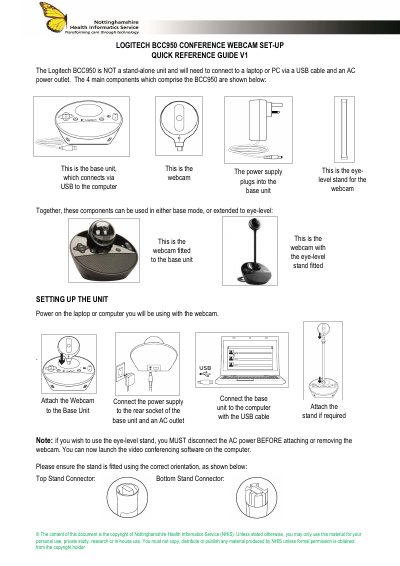
Logitech BCC950 Conference Webcam Set-Up Quick Reference Guide
This quick reference guide covers the Logitech BCC950 conference webcam, including its four main components and use in base mode or extended to eye-level. It explains setup steps such as attaching the webcam, connecting power and USB, and fitting the stand.
The guide also describes base unit controls for tilt, zoom, pan, volume, mute, hang up, and answer, plus the meaning of the base unit activity light. It notes that the webcam is not a stand-alone unit and requires a connected laptop or PC.
All Logitech BCC950 documents by type
Day-to-day operation, settings and troubleshooting. Start here if the product is already set up.
The shortest path to a working setup, usually only a few pages.
Questions answered in these manuals
What additional item comes with the BCC950 ConferenceCam?
The package includes an optional USB power cable that connects to a computer USB port and the speakerphone base.
What happens if you plug the USB power cable into a non-powered hub?
Plugging the cable into a non-powered USB port or hub could prevent your ConferenceCam from functioning properly.
Can the Logitech BCC950 be used as a stand-alone unit?
No, it must connect to a laptop or PC via a USB cable and an AC power outlet.
From: Logitech BCC950 Conference Webcam Set-Up Quick Reference Guide
Should the camera be rotated or tilted manually?
No, manual rotation or tilting may damage the device.
From: Logitech BCC950 Conference Webcam Set-Up Quick Reference Guide