
Key facts
- Brand
- Logitech
- Model
- 700
- Category
- Other Electronics
- Industry
- Electronics
- Documents
- 4
- Languages
- EN · ES
- Last added
- 2026-10-19
Start here
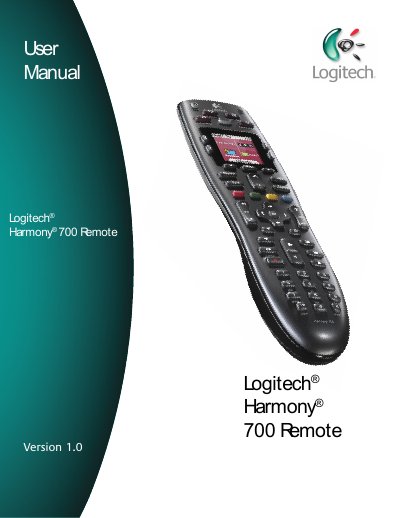
Logitech Harmony 700 Remote User Manual
The Logitech Harmony 700 is an activity-based infrared universal remote control designed to manage home entertainment systems. It utilizes Smart State Technology to track the status of connected devices, allowing the remote to automatically power on necessary equipment and turn off unused devices when switching between activities like watching TV or listening to music. The device is configured using the Harmony Remote Software, which supports controlling up to six devices.
Read onlineLogitech 700 specifications
| LCD screen size | 4 cm (diagonal) |
|---|---|
| LCD resolution | 128 x 128 pixels |
| LCD colors | 65,000 colors |
| Battery type | AA NiMH rechargeable (min 1,800 mAh) |
| IR transmission range | Up to 1.5 m |
| Flash memory capacity | 2 MB |
| Weight (with battery) | 170.1 g |
| Dimensions | 22.2 × 5 × 3.3 mm |
All Logitech 700 documents by type
Day-to-day operation, settings and troubleshooting. Start here if the product is already set up.
Questions answered in these manuals
How does the Harmony 700 know which devices to turn on?
It uses Smart State Technology to keep track of the devices it controls and knows which ones are on.
How do I turn off all devices in an activity?
Press the All Off button to power off all the devices used in the current Activity.
How do I turn off all devices in the current activity?
Press the All Off button to power down every device involved in the activity.
How can I recharge the Harmony 700 remote?
Insert the USB cable into the top of the remote, connect the other end to the supplied AC adapter, and plug the adapter into a wall outlet.
How do I turn off all devices in an Activity?
Press the All Off button to power off all devices used in the current Activity.
How can I recharge the Harmony 700 remote?
Insert the USB cable into the top of the remote, connect the other end to the AC adaptor, and plug the adaptor into a wall outlet.