
The Dell Wyse Cloud Client Wyse 5020 Quick Start Guide provides information on how to set up and use the Dell Wyse Cloud Client Wyse 5020.
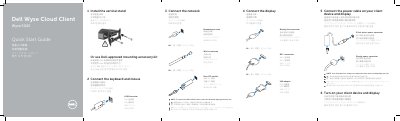
This Quick Start Guide from Dell shows how to set up the Wyse 5020 cloud client. The six illustrated steps cover installing the vertical stand, connecting the keyboard and mouse to a USB connector, connecting the network through a network connector, wireless antenna or fiber SFP module, connecting the display over DisplayPort, DVI-I or a VGA adapter, attaching the power cables to the client device and display, and turning both on. The guide notes that the device is ready to use when the client device activity light goes off.
A second page lists the features of the device, including the power button and light, activity light, USB 2.0 and USB 3.0 ports, headphone/microphone jack, vertical stand, optional wireless antenna ports, DisplayPort connector, DVI-I port, product information tab, network port, +19V power adapter input and lock receptacle. It also gives Dell support, contact and regulatory web addresses and lists the regulatory model Dx0Q. The text is printed in English with Chinese, Japanese and Korean translations.
| Network port | 10/100/1000 Base-T or SFP |
|---|---|
| Super speed USB 3.0 ports | 2x |
| USB 2.0 ports | 2x (listed twice in the feature list) |
| Power adapter input | +19V |
| Wireless antenna ports | 2x (optional) |
| Audio | Headphone/microphone jack |
| Security | Lock receptacle |
Connect them to the USB connector on the client device, as shown in step 2.
The device is ready to use when the client device activity light goes off.
Dell points to the Administrator's Guide at www.dell.com/support.
Rotate the latch and unplug the module from its slot.