
Dell laptop quick start guide, introduces how to connect the power cord, turn on the power, register the computer, get support and manuals, and contact Dell.
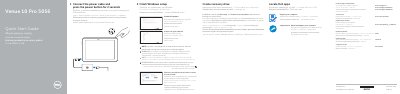
The Dell Venue 10 Pro 5056 quick start guide explains how to connect power, turn on the computer, complete Windows setup, enable Dell updates, connect to a network, sign in with a Microsoft account or create a local account, locate Dell apps, and create a recovery drive. It also lists support resources such as SupportAssist, product support and manuals, contact information, and regulatory and safety links.
The guide includes a labeled features section for the computer, covering items such as the power button, power and battery-charge status light, microphones, front and rear cameras, headset port, volume-control buttons, micro-HDMI port, USB 3.0 port, USB-C power-adapter port, keyboard-docking slots, service tag label, docking pins, NFC-sensor area, Noble security-cable slot, micro-SIM card slot, microSD-card slot, Windows button, and camera-status light. Optional procedures cover connecting to a wireless network and inserting micro-SIM and microSD cards.
| USB port | USB 3.0 |
|---|---|
| Video port | Micro-HDMI |
| Power-adapter port | USB-C |
| SIM card slot | Micro-SIM |
| NFC sensor | Optional |
| Security cable slot | Noble |
| Battery-charge indicator | Power and battery-charge status light |
| Keyboard-docking slots | 2 |
Connect the power cable and press the power button for 2 seconds.
In the system tray, tap the wireless icon, select your network, and tap Connect.
Enter the wireless network password when prompted.
In Windows search, type Recovery, click Create a recovery drive, and follow the on-screen instructions.