
Step‑by‑step guide for setting up the Netgear WNDR4000 router, covering basic internet, wireless security, firmware updates and reset.
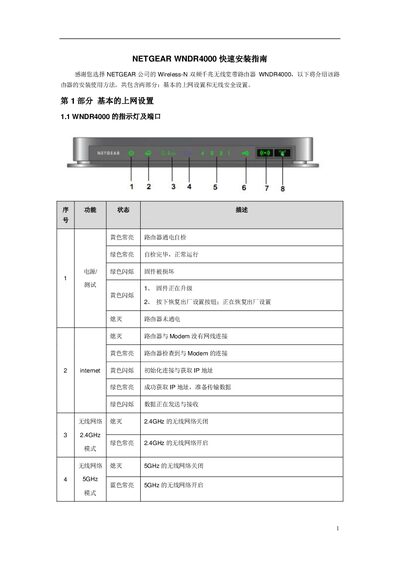
This Quick Start Guide walks you through connecting the Netgear WNDR4000 router, interpreting the LED indicators and ports, and accessing the web‑based management interface. It covers basic internet configuration (PPPoE, static or dynamic IP), wireless network setup for both 2.4 GHz and 5 GHz bands, and security settings such as passphrase creation.
Additional sections explain how to upgrade firmware, restore factory defaults, and troubleshoot common issues like IP address conflicts. The guide also provides detailed instructions for Windows XP and Vista clients to join the wireless network. This manual is written in Chinese.
| Supported Wi‑Fi Bands | 2.4 GHz and 5 GHz |
|---|---|
| LAN/WAN Speed | 10/100/1000 Mbps |
| USB Port | USB 2.0 (backward compatible with 1.0/1.1) |
| Default IP Address | 192.168.1.1 (or 10.0.0.1 if conflict) |
Press and hold the reset button on the back of the router for 15 seconds until the power LED stops flashing and becomes solid.
Open a web browser and go to http://www.routerlogin.com, http://www.routerlogin.net, or directly to the router’s IP address such as http://192.168.1.1.
Log into the router’s management page, navigate to Wireless Settings, and enter a new passphrase of 8‑63 characters.