
Setup guide for the Logitech Wireless Mouse M217: Unifying receiver pairing, mouse features, AA battery notes and troubleshooting steps.
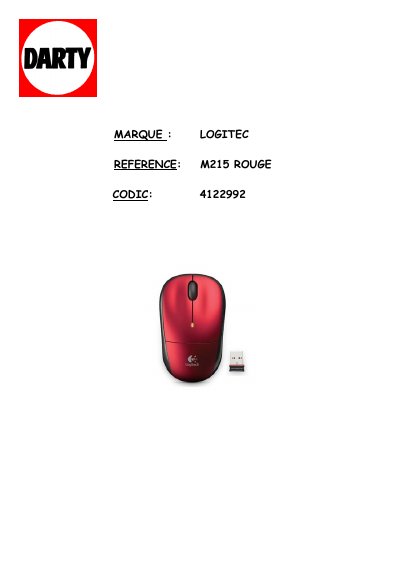
The Logitech Wireless Mouse M217 Setup Guide is a short tri-lingual leaflet in English, French and Spanish that comes with the mouse. It explains how to plug in the Logitech Unifying receiver, how to pair a wireless device with the Unifying software, and warns Mac OS X users to close the Keyboard Assistant window if it appears. The first page of the file carries a French retail reference for the M215 in red.
A features diagram labels the left and right mouse buttons, the scroll wheel that can be pressed for a middle button, the battery LED that flashes red when power is low, the On/Off slider switch, the battery door release button and the Unifying receiver storage slot. A help section lists what to check when the mouse does not work, and the last page gives Logitech support phone numbers for the Americas.
| Battery | One AA alkaline battery |
|---|---|
| Wireless receiver | Logitech Unifying receiver (USB) |
| Devices per Unifying receiver | Up to six devices on one USB port |
| Buttons | Left and right buttons; scroll wheel also works as middle button |
| Battery LED | Flashes red when battery power is low |
| Power switch | On/Off slider switch |
Check that the mouse is switched on and that the Unifying receiver is securely plugged into a computer USB port, trying another port or plugging it directly instead of into a hub. Also check the battery orientation and replace the battery if needed, remove metallic objects between mouse and receiver, and reconnect using the Logitech Unifying software.
It uses one AA alkaline battery.
Up to six devices can share a single USB port through one Unifying receiver.
Make sure the receiver is plugged in, download the Logitech Unifying software from www.logitech.com/unifying, then start the software and follow the onscreen instructions.