
Avision FF-1904B sheet-fed scanner user manual covering installation, operation, safety, system requirements, and troubleshooting.
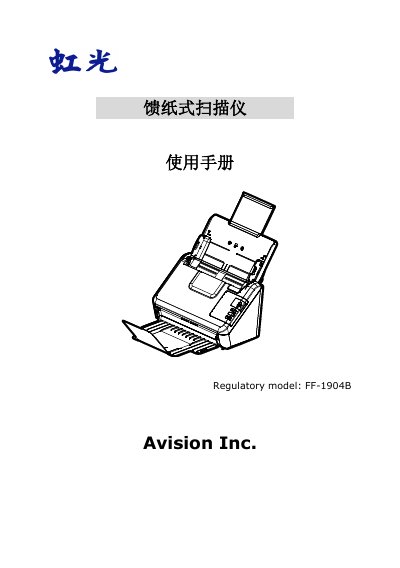
Avision FF-1904B is a sheet-fed scanner with an automatic document feeder. The manual covers unpacking, installation, first scans, document placement, ISIS interface operation, safety instructions, system requirements, and technical support.
Supported paper ranges from 74 x 52 mm to 216 x 356 mm, with thickness from 27 to 413 g/m2 and cards up to 1.25 mm. Compatible systems require an Intel Core 2 Duo or better CPU, 2 GB memory for 32-bit or 4 GB for 64-bit systems, a DVD drive, USB 2.0, and Windows 7, 8, 10, or 11. This manual is written in Chinese.
| Minimum paper size | Larger than 74 x 52 mm |
|---|---|
| Maximum paper size | No larger than 216 x 356 mm |
| Paper thickness | 27 to 413 g/m2 |
| Card thickness | Up to 1.25 mm |
| CPU | Intel Core 2 Duo or above |
| Memory (32-bit) | 2 GB |
| Memory (64-bit) | 4 GB |
| USB port | USB 2.0 (compatible with USB 1.1) |
| Optical drive | DVD drive |
| Compatible operating systems | Windows 7, 8, 10, and 11 |
Paper must be larger than 74 x 52 mm.
Microsoft Windows 7, Windows 8, Windows 10, and Windows 11.
Brightness may be too low; adjust the brightness setting.
At optical resolutions above 600 dpi, these functions use much computer memory; set optical resolution to 600 dpi or below.