
Dell Inspiron 17-5759 Laptop Quick Start Guide
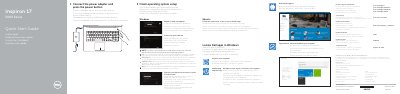
This is Dell's two-page quick start guide for the Inspiron 17-5759 computer (Inspiron 17 5000 Series), printed with the same instructions in English, Dutch, French, German and Spanish. It starts with connecting the power adapter and pressing the power button, then walks through finishing operating system setup — Windows (enable security and updates, connect to your network, sign in to a Microsoft account or create a local account) or Ubuntu (follow the on-screen instructions).
The second page labels the laptop's features, from the microphones, camera, power-adapter port, network and HDMI ports, USB 3.0 and USB 2.0 ports, media-card reader and optical drive to the battery, battery-release latch and Service Tag label, and lists shortcut keys such as mute audio, volume, brightness, display switching and sleep. It also gives Dell support links, regulatory and safety information, and NOM (Norma Oficial Mexicana) power details.
| Power adapter input voltage | 100 V AC–240 V AC |
|---|---|
| Input frequency | 50 Hz–60 Hz |
| Input current | 1.30 A / 1.60 A / 1.70 A |
| Output voltage | 19.50 V DC |
| Output current | 2.31 A / 3.34 A |
| Regulatory model | P28E |
Connect the power adapter and press the power button.
Select your network and, when prompted, enter the password for the wireless network access.
The guide points to the Specifications section at Dell.com/support.
Yes, a shortcut key toggles the keyboard backlight, which is optional.