
OptiPlex 3050 All-in-One Quick Start Guide
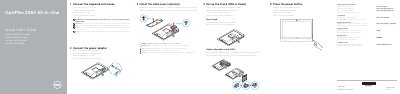
This is Dell's quick start guide for the OptiPlex 3050 All-in-One computer, printed in a five-language edition with English, French, Italian, Portuguese and Spanish instructions. It walks through the basic setup in numbered steps: setting up the stand (height adjustable stand or easel stand), connecting the keyboard and mouse, connecting the power adapter, installing the optional cable cover, and pressing the power button.
The second page lists the computer's features with numbered callouts, from the microphone, optional webcam and optical drive to the USB 2.0 and USB 3.0 ports, network port, DisplayPort, optional VGA and serial ports, headset port, USB 3.0 port with PowerShare and SD card reader. It closes with steps for finishing Windows 7 setup, setting a Windows password, connecting to a network and protecting the computer, plus notes on tilting and adjusting the stand.
| Computer model | OptiPlex 3050 All-in-One |
|---|---|
| Regulatory model | W18B |
| Regulatory type | W18B001 |
| Stand options | Height adjustable stand (HAS) or easel stand |
| USB ports | USB 2.0 ports, USB 3.0 ports and a USB 3.0 port with PowerShare |
| Display output | DisplayPort and optional VGA port |
| Card reader | SD Card reader |
| Speakers | Stereo speakers |
| Optical drive | Optional |
It covers setting up the stand, connecting the keyboard and mouse, connecting the power adapter, installing the optional cable cover and pressing the power button.
No, installing the cable cover is listed as optional, and securing it with the Torx screw is optional as well.
See the documentation that shipped with the wireless keyboard or mouse.
Dell points to Dell.com/support and Dell.com/support/manuals for product support and manuals.