
The Logitech c920 webcam is a high-definition webcam with autofocus, high-definition and 1080p Carl Zeiss lens, and a microphone. It can be placed on a computer monitor, or on a desk or tripod.
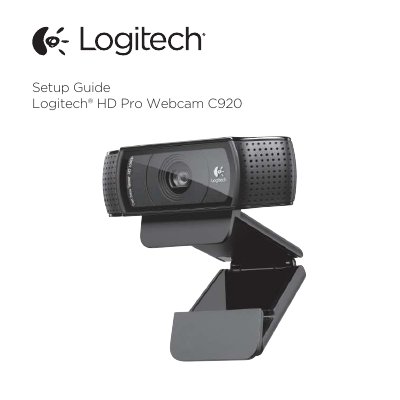
Logitech HD Pro Webcam C920 Setup Guide is a Spanish-language setup and usage guide for the Logitech C920 webcam. It describes webcam placement on a monitor, desk, or tripod, connection, and software installation for Windows 8, Windows 7, and Windows Vista, plus video conferencing requirements.
The guide also covers the Windows 8 Camera app, Logitech Webcam Software controls, photo and video capture, gallery sharing, motion detection, and camera adjustments during video calls. This manual is written in Spanish.
| Lens | Carl Zeiss with autofocus, HD, 1080p |
|---|---|
| Video conferencing resolution | Full HD 1080p |
| Microphones | Two built-in |
When the webcam is first connected to a Windows 8 computer, the software downloads automatically in the background if an Internet connection is available.
Both parties need a webcam and a video conferencing application, a computer with speakers or headphones and a microphone, and a broadband Internet connection.
The webcam can be set to record video when it detects motion, with adjustable video duration and detection sensitivity.
In the Camera app, select a photo or video, then choose Share from the Charms bar.