
The Logitech OnePres User Manual explains how to set up and use the wireless screen sharing kit for single, dual, and extended screen sharing.
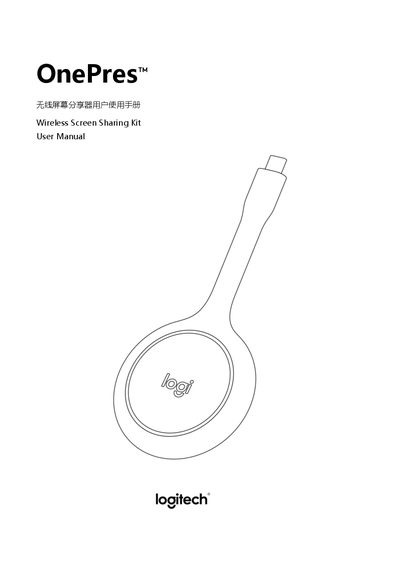
The OnePres wireless screen sharing kit is a plug‑and‑play device that enables point‑to‑point, high‑definition audio and video transmission across multiple devices. It supports single‑direction, dual‑direction, and extended screen sharing, allowing users to share content between computers, smart TVs, and video‑conference systems.
The manual provides step‑by‑step instructions for installing the kit, connecting the sender and receiver units, and troubleshooting common issues such as connection failures, black edges, audio problems, and latency. It also includes system requirements and technical support information. This manual is written in Chinese.
| Supported OS (receiver) | Windows 10 or later |
|---|---|
| Supported OS (receiver) | macOS 10.10 or later |
| Minimum PC CPU | 7th‑gen Intel Core i5 or higher |
| Video resolution | 1080P or higher |
| Maximum transmission distance | 15 m |
| Supported Android version | Android 5.0 or later |
A flashing ring indicates that the device is not connected; a solid light means it is connected.
Black edges or blur usually occur when the sender and receiver have different screen aspect ratios; switching the sender to extended screen mode can resolve it.
Adjust the volume on both devices, set OnePres as the audio output on the sender, and select the default audio device on the receiver.
Re‑plug the share‑kit, restart the computer, and press Windows + P to switch to duplicate or extended display mode.