
This document introduces the use of D-Link Diagnostics Utility software, including software startup, function and interface explanation, and how to use software to manage virtual network adapters.
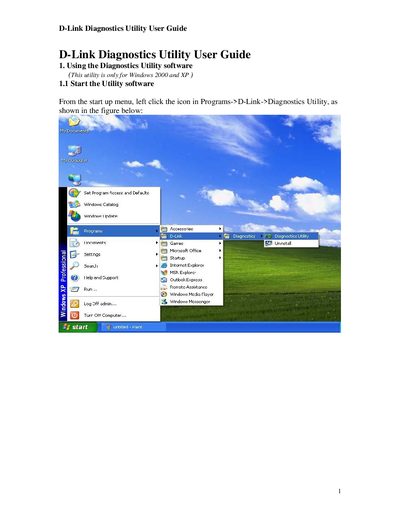
The D-Link Diagnostics Utility provides a Windows‑based interface for managing D-Link Ethernet adapters. The utility can be launched from the Start menu under Programs → D-Link → Diagnostics Utility and displays detailed information such as MAC address, IP address, device IDs, and driver version.
The utility offers seven main functions: General, VLAN, Driver, Diagnostics, Statistics, Cable, and Wake On LAN. Users can add, delete, modify, or disable virtual adapters in the VLAN section, view driver details, and wake computers on the network using Ethernet, IP, or NetBIOS addresses.
| Driver Version | 5.641.209.2006 |
|---|---|
| Maximum VLANs | 64 |
| VLAN ID range | 1‑4096 |
The utility allows up to 64 VLANs to be configured.
Click the Add button, type the VLAN ID, press Enter, and confirm the prompt.
Enter the computer’s Ethernet address in the Wake On LAN section and press the Wake Up button.