
This document is the quick installation guide for D-Link wireless router DSL-G684T
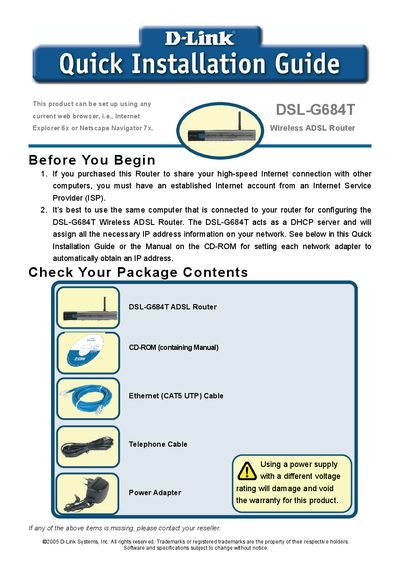
The guide walks you through unpacking the DSL‑G684T, connecting the power adapter, Ethernet cable, and telephone line, and powering on the device. It explains how the router functions as a DHCP server and how to verify that the Power LED is on.
Configuration can be done either with the D‑Link Click’n Connect utility on the included CD or via a web browser at http://192.168.1.1. The built‑in Setup Wizard guides you through selecting a time zone, choosing the WAN connection type (PPPoE/PPPoA, Dynamic IP, Static IP, Bridge), and setting up the wireless SSID and channel. An appendix provides detailed steps for configuring Windows XP network settings.
| Supported WAN connection types | PPPoE/PPPoA, Dynamic IP, Static IP, Bridge Mode |
|---|---|
| DHCP server | Enabled (router assigns IP addresses) |
| Power adapter voltage warning | Do not use a power supply with a different voltage rating |
Press the Reset button on the back of the DSL‑G684T to return all settings to their default values.
During the Setup Wizard, go to the Set Wireless LAN screen and enter your desired SSID in the SSID field.
In Windows XP, open Network Connections, right‑click Local Area Connection, choose Properties, select Internet Protocol (TCP/IP), and enable “Obtain an IP address automatically”.