
Key facts
- Brand
- Konica Minolta
- Model
- 1390MF
- Category
- Printer
- Documents
- 3
- Languages
- EN · ZH
- Last added
- 2012-03-16
Start here
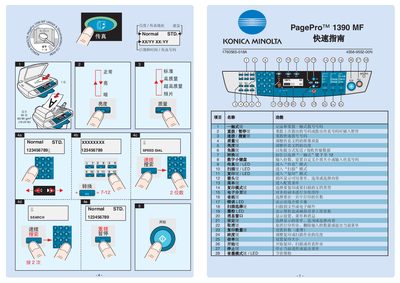
Konica Minolta PagePro 1390 MF Quick Start Guide
This quick start guide introduces the basic operation of the Konica Minolta PagePro 1390 MF. It covers menu navigation, brightness adjustment, speed‑dial functions and the meaning of the LED indicators.
The manual also explains how to cancel a print job, set paper size and weight, and use the built‑in magnification and depth settings for optimal output. This manual is written in Chinese.
Konica Minolta 1390MF specifications
| Print resolution (B&W) | 600 × 600 dpi |
|---|---|
| Print resolution (color) | 1200 dpi |
| Interface | USB 2.0 High‑Speed |
| Maximum power consumption | < 900 W |
| Noise level | < 58 dB(A) |
| Operating temperature | 10 °C – 35 °C |
| Operating humidity | 15 % – 85 % RH |
| Dimensions (W × D × H) | 492 mm × 465 mm × 369 mm |
| Supported paper sizes | A4, A5, A6, A4 Plus, Letter, Legal, B5, etc. |
Source: Konica Minolta PagePro 1380MF/1390MF Laser Multi-Function All-in-One Manual
All Konica Minolta 1390MF documents by type
Day-to-day operation, settings and troubleshooting. Start here if the product is already set up.
The shortest path to a working setup, usually only a few pages.
Mounting, wiring and first power-up. Read it before the hardware goes in.
Questions answered in these manuals
Which interface does the device use for computer connections?
It uses a USB 2.0 High‑Speed interface.
From: Konica Minolta PagePro 1380MF/1390MF Laser Multi-Function All-in-One Manual
What are the operating temperature limits?
The device operates between 10 °C and 35 °C.
From: Konica Minolta PagePro 1380MF/1390MF Laser Multi-Function All-in-One Manual
How do I cancel a print job?
Press the Cancel key to stop the current print job.
What does the LED indicator mean?
The LED shows the toner level; when it indicates low, replace the toner cartridge.
What should be done before setting up the printer?
Examine the safety information in the General Information Guide before installing the printer.
What should you do with the packing material after unpacking?
Keep all packing materials in case you need to move or ship the printer later.