
Key facts
Start here
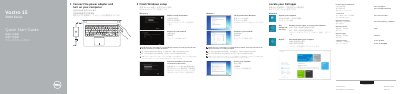
Dell Vostro 15 3000 Series Laptop Quick Start Guide
This document provides instructions for the initial setup of the Dell Vostro 15 3000 Series laptop. It guides users through connecting the power adapter, completing the Windows setup process, enabling security updates, connecting to a network, and signing into a Microsoft account. It also details how to register the computer and access Dell support resources.
Read onlineDell Vostro 15 3000 Series specifications
| Regulatory model | P52F |
|---|---|
| Regulatory type | P52F001/P52F003 |
| Computer model | Vostro 15-3558/3559 |
All Dell Vostro 15 3000 Series documents by type
The shortest path to a working setup, usually only a few pages.
- Dell Vostro 15 3000 Series Laptop Quick Start Guide 2 p
- Dell Vostro 15 3000 Series Laptop Quick Start Guide 2 p
- Dell Vostro 15 3000 Series Notebook Quick Start Guide 2 p
- Dell Vostro 15 3000 Series Notebook Quick Start Guide 2 p
- Dell Vostro 15 3000 Series Quick Start Guide 2 p
- Dell Vostro 15 3000 Series Quick Start Guide 2 p
- Dell Vostro 15 3000 Series Laptop Quick Start Guide 2 p
- Dell Vostro 15 3000 Series (Vostro 15-3558) Notebook Quick Start Guide 2 p
- Dell Vostro 15 3000 Series Laptop Quick Start Guide 2 p
- Dell Vostro 15 3000 Series (Vostro 15-3558) Laptop Quick Start Guide 2 p
- Dell Vostro 15 3000 Series Laptop Quick Start Guide 2 p
Day-to-day operation, settings and troubleshooting. Start here if the product is already set up.
Questions answered in these manuals
How do I connect to a secured wireless network?
Enter the password for the wireless network access when prompted.
What is the part number for the Windows 7 setup?
The part number is 6NKJ5 A01.
How do I create recovery media for Windows?
In Windows search, type Recovery, click Create a recovery media, and follow the instructions on the screen.
What should I do when connecting to a secured wireless network?
Enter the password for the wireless network access when prompted.
How do I create recovery media for Windows?
In Windows search, type Recovery, click Create a recovery media, and follow the instructions on the screen.
What should I do if I connect to a secured wireless network?
Enter the password for the wireless network access when prompted.