
Key facts
- Brand
- DELL
- Model
- K10A
- Category
- Other Computer Accessories
- Documents
- 4
- Languages
- EN
- Last added
- 2023-11-25
Start here
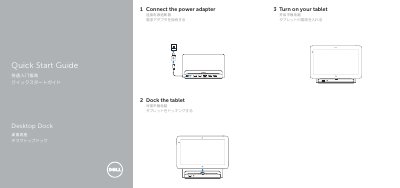
Dell K10A Tablet and Desktop Dock Quick Start Guide
This quick start guide from Dell covers the K10A tablet and its desktop dock. It walks through three setup steps: connecting the power adapter, turning on the tablet, and docking the tablet on the desktop dock.
The guide also identifies the dock's features, including USB 3.0, audio, network, HDMI, and DisplayPort connectors, a docking connector, a power connector, and a power status light. It lists Dell support, manual, regulatory compliance, and contact pages at dell.com, and includes Mexican NOM electrical ratings for the device.
Dell K10A specifications
| Input voltage | 100 V AC – 240 V AC |
|---|---|
| Maximum input current | 1.30 A |
| Input frequency | 50 Hz – 60 Hz |
| Output current | 2.31 A |
| Output voltage | 19.5 V DC |
| Regulatory model and type | K10A K10A001 |
All Dell K10A documents by type
The shortest path to a working setup, usually only a few pages.
Questions answered in these manuals
What connectors does the Dell K10A desktop dock have?
The dock has USB 3.0 connectors, an audio connector, a docking connector, a power connector, a network connector, an HDMI connector, and a DisplayPort connector, plus a power status light.
What are the electrical ratings listed for the K10A?
Input is 100–240 V AC at up to 1.30 A, 50–60 Hz; output is 19.5 V DC at 2.31 A, as listed for Mexican NOM requirements.
Where can I find product support and manuals for the Dell K10A?
Product support and manuals are available at dell.com/support and dell.com/support/manuals.
What is the regulatory model and type of the Dell K10A?
The regulatory model is K10A and the type is K10A001.
What is the first setup step in the quick start guide?
The first step is to connect the power adapter.
Which connectors are listed first on the dock?
The first listed connector is USB 3.0, followed by an audio connector.