
Quick-start guide for StarTech.com's 2-port USB-C KVM switch with DisplayPort 4K 60Hz support and remote port selector.
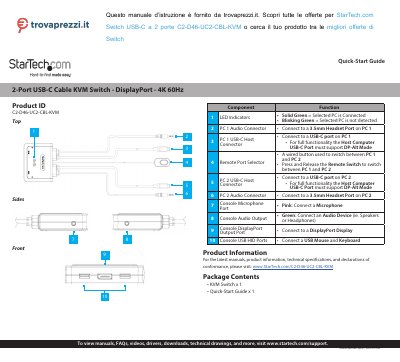
This guide explains how to install and operate the 2-Port USB-C Cable KVM Switch. Connect two computers via USB-C ports and use the remote selector or hotkeys to switch between them. The console connects via DisplayPort and optional audio ports. Software installation enables advanced features like autoscan and fixed audio.
The switch supports 4K 60Hz resolution and requires USB-C ports with DisplayPort Alt-Mode. Optional peripherals include microphones, speakers, and headsets. Safety warnings advise against touching exposed circuitry while powered.
| Resolution Support | 4K 60Hz |
|---|---|
| Port Type | USB-C |
| Audio Connectors | 3.5mm Headset Ports |
| Display Output | DisplayPort |
Press and release the Remote Port Selector button, or use the hotkey combination (Scroll Lock + Scroll Lock + 1-2).
Install the KVM Switching Software on each connected computer to enable features like autoscan and fixed audio.
You need two USB-C DisplayPort Alt-Mode enabled computers, a DisplayPort cable, a DisplayPort display, and two USB HID devices (keyboard/mouse). Optional: microphone, speakers, or headset.