
Logitech ConferenceCam Connect quick start guide: product parts, setup and charging, video conferencing, Bluetooth and wireless screen mirroring modes.
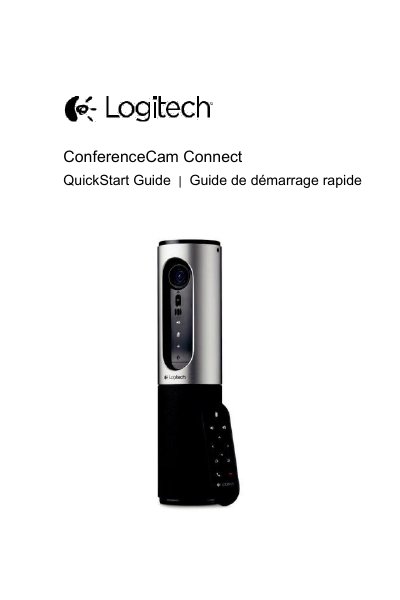
This French-language quick start guide covers the Logitech ConferenceCam Connect, a conference camera with a 1080p camera and 90-degree field of view. It identifies the parts of the camera unit, the speakerphone module and the remote control, including the USB and HDMI ports, NFC area, Kensington lock slot and power button.
The guide then walks through installation: connecting the device to an external power source, charging the rechargeable battery, switching the device on and choosing between video conferencing, Bluetooth and wireless screen mirroring modes. It also describes video controls (pan, tilt, zoom), audio and call buttons, speakerphone activity lights, battery charge indications and where to find troubleshooting and support information. This manual is written in French.
| Camera | 1080p camera with 90-degree field of view |
|---|---|
| Field of view | 90 degrees |
| Wireless pairing | NFC and Bluetooth |
| Battery | Rechargeable battery supplied; can also be charged via USB from a PC or Mac |
| Battery indicator | Light turns green when the battery is fully charged; green light goes off below 75% |
| HDMI port | Used for the wireless screen mirroring mode |
Only the Bluetooth and wireless screen mirroring modes can work at the same time; wireless performance may vary.
Connect the USB cable between the device and your USB port, select video conferencing mode, then make the call from your PC or Mac application.
At 25% the battery light turns red; at 10% the red light blinks and an audible signal sounds, meaning the device must be plugged in immediately or it will stop working.
It must first be connected to an external power source and charged until the green battery light comes on; it can also be charged via USB from a PC or Mac.