
Quick Start Guide for Dell computer, introduces the parts and functions of the computer.
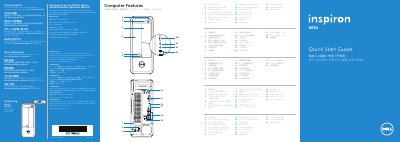
This Quick Start Guide for the Dell Inspiron 660s desktop computer identifies the computer's features, including the power button, hard-drive activity light, optical-drive bay, front I/O panel, 8-in-1 media-card reader, and the rear ports (USB 2.0, USB 3.0, VGA, HDMI, audio, and network). It also lists the regulatory model D06S and the electrical input ratings printed for Mexico (NOM).
The guide walks through initial setup: connecting the keyboard and mouse, an optional network cable, the display, and the power cable, then completing Windows setup and enabling security. It includes a short Windows 8 getting-started section covering tiles, the Charms sidebar, and My Dell Support Center, plus contact and regulatory-compliance links for Dell.
| Regulatory model | D06S |
|---|---|
| Input voltage | 100–127 V AC / 200–240 V AC |
| Input frequency | 50 Hz / 60 Hz |
| Input current | 6 A / 3 A |
| Front ports | 2 USB 2.0 ports, headphone and microphone ports, 8-in-1 media-card reader |
| Rear ports | 4 USB 2.0 ports, 2 USB 3.0 ports, VGA, HDMI, 3 audio ports, network port |
If you ordered the computer with an optional discrete graphics card, connect the display to the connector on the discrete graphics card.
For sales, technical support, or customer service issues, go to dell.com/ContactDell.
Regulatory and safety best practices are available at dell.com/regulatory_compliance.
Point the mouse to the lower- or upper-right corner of the screen to access the Charms sidebar.