
Dell Inspiron 15-5559 Quick Start Guide
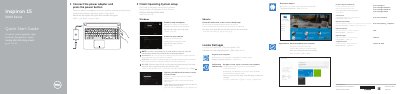
This two-page Dell quick start guide for the Inspiron 15-5559 (regulatory model P51F, regulatory type P51F004) covers first-time setup: connect the power adapter and press the power button, finish operating system setup for Windows or Ubuntu, connect to your network, enable security and updates, and sign in to a Microsoft account or create a local account. It also shows where to locate Dell apps such as SupportAssist, Dell Backup and Recovery, and Dell Help & Support, and gives Dell support and regulatory web links.
The second page labels the computer's features and shortcut keys. Numbered items include the camera and camera-status light, microphones, power-adapter port, network port, HDMI port, USB 3.0 port, USB 2.0 ports (2), media-card reader, headset port, optical drive, security-cable slot, power button, battery, service tag label and battery-release latch; the shortcut keys cover mute, volume, media playback, external display, search, keyboard backlight, brightness, Fn-key lock, wireless, sleep and the power/battery-status light. Instructions are repeated in several languages, including English, Croatian, Indonesian, Vietnamese and Arabic.
| Regulatory model | P51F |
|---|---|
| Regulatory type | P51F004 |
| USB 2.0 ports | 2 |
| Headset port | 1 |
Connect to your network and, when prompted, enter the password for the wireless network access.
Dell points to the Specifications page at Dell.com/support.
The shortcut key list includes a key to turn wireless off and on.