
The Dell Precision Tower 5810 Quick Start Guide provides information on how to set up and use the Dell Precision Tower 5810 desktop computer.
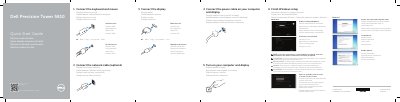
This quick start guide for the Dell Precision Tower 5810 walks through the initial setup of the computer in numbered steps: connecting the keyboard and mouse over USB or PS/2, connecting the network cable, connecting the display through DVI or DisplayPort, connecting the power cables, and turning on the computer and display. It then covers finishing Windows setup, including connecting to a network, signing in with a Microsoft account or creating a local account, enabling security and updates, setting a password and scanning for support access.
The second page lists the front and rear features of the computer with numbered callouts, such as the power button and power light, hard-drive activity light, USB 3.0 and USB 2.0 connectors, optical drive and eject buttons, headphone, line-in/microphone, line-out and serial connectors, PS/2 keyboard and mouse connectors, security cable slot and padlock ring, network connector, expansion card slots and the power-supply unit release latch. Support and regulatory links, the regulatory model and type, and the computer model are also given.
| Computer model | Dell Precision Tower 5810 |
|---|---|
| Regulatory model | D01T |
| Regulatory type | D01T006 |
| USB connectors | USB 3.0 connector and USB 2.0 connectors |
| Display connectors | DVI connector or DisplayPort connector |
| PS/2 connectors | PS/2 keyboard connector and PS/2 mouse connector |
| Optical drive | Optical drive, second optical drive optional |
Connect them to the USB connectors, or use the PS/2 connector for the keyboard or the mouse.
Enter the password for the wireless network access when prompted.
Dell points to dell.com/support/manuals for product support and manuals.
The computer shows a DVI connector or a DisplayPort connector for the display.