
The Dell Precision Mobile Workstation 7000 Series Quick Start Guide provides information on how to set up and use your Dell Precision Mobile Workstation 7000 Series laptop.
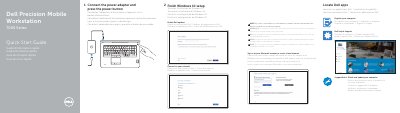
The Dell Precision 7000 Series 7710 mobile workstation quick start guide shows initial setup steps: connect the power adapter and press the power button, use SupportAssist, register the computer, and locate Dell apps. It also covers finishing Windows 10 setup, enabling Dell updates, connecting to a network, and signing in to a Microsoft account or creating a local account.
The second page identifies the computer's features, including the microphone, camera, network and power connectors, USB 3.0 connectors, memory card reader, fingerprint reader, battery-status light, touchpad, smartcard readers, Mini DisplayPort, HDMI, USB-C, docking connector, service-tag label, and door and battery release latch. The document includes text in English, French, Italian, Portuguese, and Spanish.
Connect the power adapter and press the power button.
Enter the password for the wireless network access when prompted.
Finish Windows 10 setup.