
The Dell Precision Tower 3620 Quick Start Guide provides information on how to set up and use the Dell Precision Tower 3620 desktop computer.
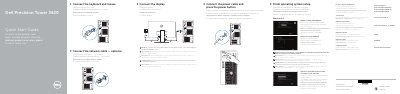
The Dell Precision Tower 3620 quick start guide gives setup instructions for the computer in several languages. It covers finishing operating system setup, enabling security and updates, connecting to a network, signing in to a Microsoft account or creating a local account, connecting the keyboard and mouse, connecting the network cable if needed, connecting the power cable and pressing the power button, and connecting the display. A note says that if the computer was ordered with a discrete graphics card, the display should be connected to that card.
The guide also lists the computer's features and connectors, including USB 2.0 and USB 3.0 ports, DisplayPort and HDMI connectors, PS/2 mouse and keyboard ports, audio connectors, expansion-card slots, a security-cable slot, a network connector, and a serial port connector. It provides Dell support and regulatory compliance links and describes Dell apps such as Dell Backup and Recovery, Dell Data Protection | Protected Workspace, and SupportAssist. It also notes that an upgrade from 32-bit Windows 7 to Windows 10 requires manual installation of system drivers.
| Computer model | Dell Precision Tower 3620 |
|---|---|
| USB 3.0 connectors | Yes |
| USB 2.0 connector with PowerShare | Yes |
| USB 2.0 connectors (supports ACPI S5 wake up) | Yes |
| DisplayPort connectors | Yes |
| HDMI connector | Yes |
| Expansion-card slots | Yes |
| Network connector | Yes |
| Serial port connector | Yes |
Connect the display to the discrete graphics card.
Enter the wireless network password when prompted.
The guide lists Dell.com/support and Dell.com/support/manuals.
The upgrade requires manual installation of the system drivers. Latest drivers are available at dell.com/support.