
The Dell Wyse PCoIP Zero Client Wyse 7030 Quick Start Guide provides information on how to set up and use the Dell Wyse PCoIP Zero Client Wyse 7030.
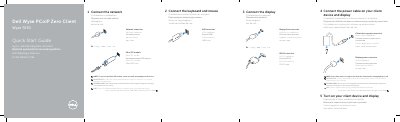
This Dell quick start guide covers setting up the Wyse 7030 PCoIP zero client: connecting the keyboard and mouse to the USB connector, connecting the network, connecting the display through the DisplayPort or DVI-D connector, and connecting the power cable to the client device and display. A note states that the client device is ready to use when its activity light goes off. The steps are printed in English together with Hungarian, Russian, Turkish and Hebrew translations.
A feature list identifies the PCoIP LED, the zero client power button and LED, USB 2.0 ports, headphone out and microphone in jacks, the network port (10/100/1000 Base-T or SFP/Mini-GBIC slot), DisplayPort/DVI-D outputs, line out/speaker out, the +12V DC power adapter input and the vertical stand. Support, contact and regulatory web addresses are given, along with regulatory models 292D (DVI port) and 292E (DisplayPort), and a note that components may vary based on model and location.
| USB ports | USB 2.0 port (2x), listed twice |
|---|---|
| Network port | 10/100/1000 Base-T, or SFP/Mini-GBIC slot |
| Display outputs | DisplayPort (4x)/DVI-D port (4x) |
| Power input | +12V DC power adapter input |
| Audio | Headphone out jack, microphone in jack, line out/speaker out |
| Regulatory model (DVI port) | 292D |
| Regulatory model (DisplayPort) | 292E |
The client device is ready to use when the client device activity light goes off.
Dell points to dell.com/support and dell.com/support/manuals for product support and manuals.
Rotate the latch and unplug the module from its slot.
No, components may vary based on model and location.