
Haiwell Cloud Box Cloud Box is an IoT terminal that can be easily managed through a mobile app and a cloud website. It is an industrial automation monitoring and management device that runs on embedded system software, Haiwell configuration engineering, and can monitor the on-site situation of industry by accessing Cloud Box running screen on mobile app and cloud website. It can also communicate with various industrial control devices, aggregate data and upload it to cloud for further application.
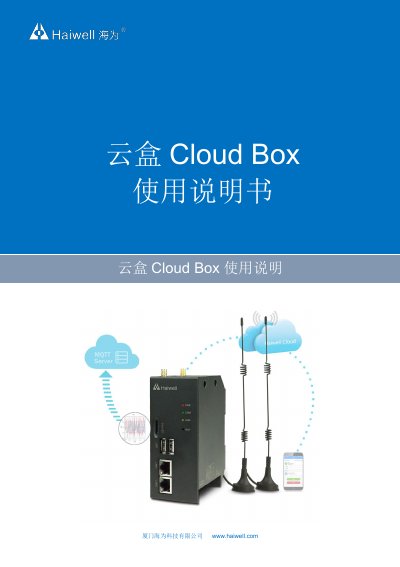
This manual provides step-by-step instructions for setting up and operating the Haiwell Cloud Box, an IoT device for industrial monitoring. It covers connecting via mobile app or web, configuring network settings, managing users and permissions, and restoring factory defaults. The device supports MQTT, RS485, Ethernet, and 4G connectivity, with features like cloud-based SCADA and remote access.
The Cloud Box is designed for integration with industrial control systems, allowing data collection and remote monitoring. It includes hardware specifications such as 24VDC power input, dual Ethernet ports, and support for SD cards and SIM cards. Users can manage access levels for administrators, visitors, and whitelist users through the cloud interface. This manual is written in Chinese.
| Input Voltage | 24VDC±20% |
|---|---|
| Processor | Cortex A7, up to 696MHz |
| Storage | 4GB Flash, 512MB RAM |
| Ethernet Ports | 2x 10/100 Base-Tx |
| Operating Temperature | 0~+55℃ |
| Dimensions | 50mm*120mm*88mm |
| Certification | CE Certified |
Connect your phone to the Cloud Box’s Wi-Fi hotspot, then open the Haiwell Cloud app, tap 'Local Devices', refresh, and select the device to access its engineering interface.
Connect the device to the internet, go to the cloud settings, scan the QR code in the app, and confirm the binding in the pop-up dialog.
The default IP address is 192.168.1.112.
Hold the RST button for 5 seconds until the three LEDs flash slowly, then press and hold again for 3 seconds within 3 seconds to enter factory reset mode. The device will beep three times upon completion.