
This is a user guide for the TP-Link Kasa Smart Wi-Fi Plug Mini HS103, which introduces how to set up, use and configure the product.
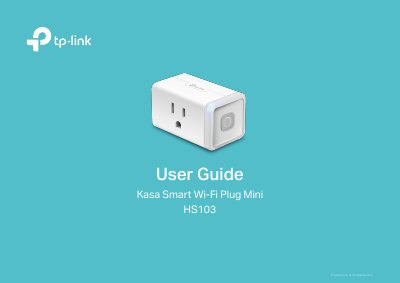
This guide explains how to set up and use the TP-Link Kasa Smart Wi-Fi Plug Mini HS103. It covers connecting the plug to your Wi-Fi, controlling devices via the Kasa app, setting schedules and away modes, and managing device status. Safety and compliance information is also included.
The plug is designed for home use, allowing you to control appliances remotely via the Kasa app. It supports up to 1500W for heaters and 50W for fans. The device has a compact design that allows two plugs to be stacked in one outlet. Setup requires the Kasa Smart app and a Wi-Fi connection.
| Operating Temperature | 0 ºC~ 40 ºC (32°F ~ 104°F) |
|---|---|
| Storage Temperature | -40 ºC~ 70 ºC (-40°F ~ 158°F) |
| Operating Humidity | 10%~90%RH, Non-condensing |
| Supported Load Types | Heater: ≤1500 W, Toaster: ≤850 W, Humidifier: ≤260 W, Tower Fan: ≤50 W, Iron: ≤1500 W |
Install the Kasa Smart app, log in or sign up with a TP-Link ID, then add the device via the app by selecting Smart Plugs > Smart Plug Lite / Mini.
The plug supports up to 1500W for heaters and 50W for tower fans.
Press and hold the button for 10 seconds until the LED flashes amber rapidly to factory reset.