
This guide shows how to connect, configure, and use the Easy‑Expand feature of the TP‑Link TL‑XDR5430 router.
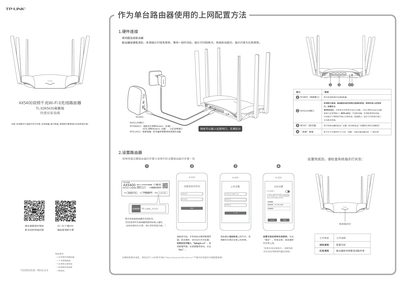
The guide starts with hardware connection instructions: connect the power adapter, attach the WAN/LAN cable, and verify the indicator lights (green steady for power, red steady for configuration). It explains the dual‑band AX5400 Wi‑Fi 6 router’s ports and how the router automatically detects the type of cable inserted.
Next, it walks through the setup steps: configuring the internet connection, setting the Wi‑Fi name and password, and using the Easy‑Expand (one‑key) button to pair multiple TL‑XDR5430 units into a distributed Wi‑Fi network. Troubleshooting tips and a FAQ section cover common issues such as resetting the device, restoring factory defaults, and improving signal stability. This manual is written in Chinese.
| Wi‑Fi Standard | Wi‑Fi 6 (802.11ax) |
|---|---|
| Maximum Data Rate | AX5400 |
| Frequency Bands | 2.4 GHz and 5 GHz |
| Easy‑Expand Capacity | Up to 8 routers (1+7) |
Press and hold the RESET button on the back panel until the system indicator flashes, then release.
Check that the WAN/LAN cables are correctly connected, verify the internet settings (account, password, connection type), and ensure the computer’s IP/DNS settings are set to automatic.
It indicates the router is waiting for configuration or there is a line fault; check the WAN connection and internet settings.