
This document describes the features and functionality of the XJ-S33/XJ-S38*, XJ-S43/XJ-S48*, XJ-S53/XJ-S58*, XJ-S63/XJ-S68* data projectors.
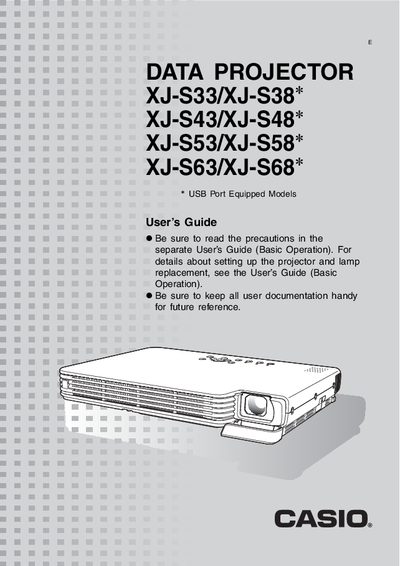
This document serves as a user's guide for the Casio XJ-S33 through XJ-S68 series of USB-equipped data projectors. It details various operations that can be performed while projecting an image, such as adjusting brightness, selecting color modes, zooming, freezing images, and displaying pointers.
The manual also explains how to configure advanced projector settings via the Setup Menu, including password protection for security and restoring factory defaults. Additionally, it provides information on remote controller signal range, projection distances, supported video signals (HDTV, SDTV, NTSC, PAL), and aspect ratio settings.
| Supported HDTV Resolutions | 1080p/50, 1080p/60, 720p/50, 720p/60, 1080i/50, 1080i/60 |
|---|---|
| Supported SDTV Resolutions | 576p50, 576i50, 480p60, 480i60 |
| Supported Video Signals | NTSC, NTSC4.43, PAL, PAL-M, PAL-N, PAL60, SECAM |
Use the [KEYSTONE +] and [KEYSTONE -] keys to change the keystone correction value to zero.
Press the [BRIGHT] key to display the adjustment window, then use the cursor keys to modify the setting.
Yes, press the [BLANK] key to temporarily cut off the input source and project a black screen.