
This document is a product manual for the installation of the JSQAZ021 counter and the operation instructions for the Samsung 4300 all-in-one machine chip driver, produced by Beijing Laisheng High-tech Technology Co., Ltd. The document provides step-by-step instructions for installing the counter and replacing the old counting chip, as well as the operation instructions for the all-in-one machine chip driver. The counter is suitable for the SAMSUNG 4300 printer.
This guide provides step‑by‑step instructions for installing and configuring the chip drive of the Samsung SCX‑4300 all‑in‑one printer. It covers removal of the old chip, insertion of the new chip, and required safety precautions before powering the device.
Additional sections describe flash memory erasing and programming, system status indicators, and basic printer settings such as paper type and default copy options. The document also includes troubleshooting notes for common error messages. This manual is written in Chinese.
| Firmware Version | 1.13fix |
|---|---|
| Engine Version | WV1.01.25 |
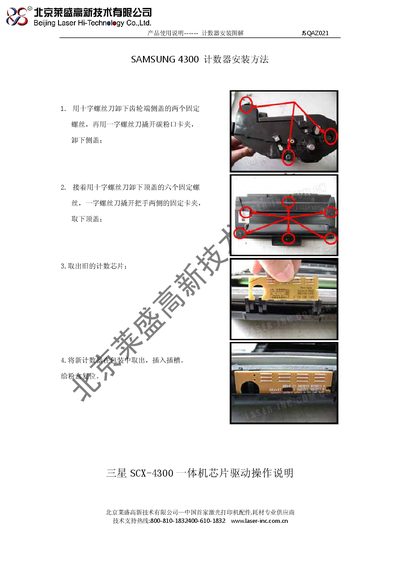
Use a Phillips screwdriver to remove the retaining screw on the side, then a flat‑head screwdriver to release the chip holder and take out the old chip before inserting the new one.
The error indicates a mismatch in the chip version; reinstall the correct chip version and re‑program the flash memory.
Select the "FLASH TS ERASING" option in the maintenance menu to erase the existing data, then use "FLASH PROGRAMMING" to write the new firmware.
The default paper type is set to Plain Paper, with default copy count of 1 and standard density settings.