
Key facts
- Brand
- Lenovo
- Model
- M710
- Category
- All-in-one printer
- Industry
- Computers
- Documents
- 3
- Languages
- ZH · JA · EN
- Last added
- 2012-03-16
Start here
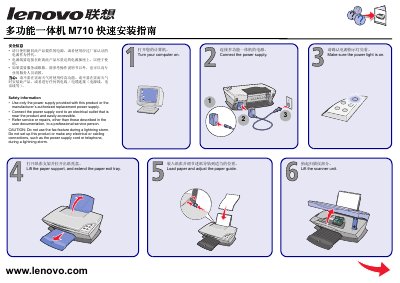
LENOVO multi-function all-in-oneM710 quick installation Service Manual
This guide provides step‑by‑step instructions for powering on the Lenovo M710 all‑in‑one, loading paper, installing print cartridges, and connecting the device to a computer via USB and the supplied software CD. Safety precautions are highlighted, including proper power‑supply use and warnings about operating the fax function during lightning storms.
Follow the on‑screen prompts after connecting the USB cable, and cancel any "Add New Hardware" dialogs that appear. After installation, verify that the power indicator is lit and the scanner unit is closed before beginning regular use. This manual is written in Chinese.
Lenovo M710 specifications
| Operating temperature | 16 °C to 32 °C |
|---|---|
| Storage temperature | 1 °C to 60 °C |
| Transport temperature | -40 °C to 60 °C |
All Lenovo M710 documents by type
Day-to-day operation, settings and troubleshooting. Start here if the product is already set up.
The shortest path to a working setup, usually only a few pages.
Questions answered in these manuals
What power supply should I use with the M710?
Use only the power supply that came with the product or an authorized replacement, and plug it into a nearby accessible outlet.
From: LENOVO multi-function all-in-oneM710 quick installation Service Manual
Can I use the fax feature during a lightning storm?
No. Do not use the fax function or make any electrical connections during a lightning storm.
From: LENOVO multi-function all-in-oneM710 quick installation Service Manual
What temperature range can the M710 operate in?
The device can operate between 16 °C and 32 °C.
How do I reinstall the M710 after removal?
Refer to the “Reinstallation (卸載) 26” section for step‑by‑step instructions on reinstalling the unit.
How do I turn the device on and off?
Press the Power button on the control panel to turn the All‑In‑One on or off.
How can I start a scan?
Press the Scan button on the control panel or open the Lenovo M710 All‑In‑One Center and click the Scan option.