
Key facts
Start here
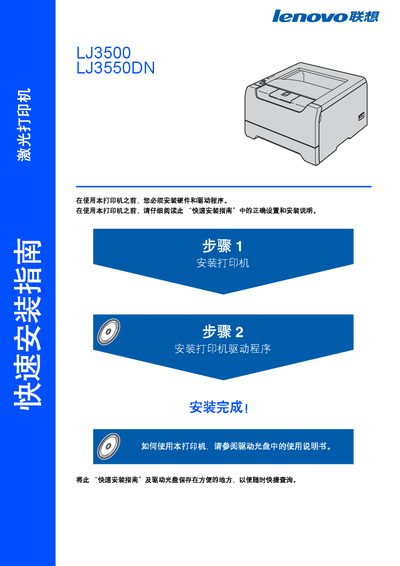
Lenovo LJ3500 / LJ3550DN Laser Printer Quick Installation Guide
This guide provides step‑by‑step instructions for installing the printer hardware, loading the toner and drum, inserting paper, and configuring drivers for Windows, Macintosh and network environments. It also lists required cables, their length limits, and how to connect the printer to a PC or LAN.
Safety information covers high‑voltage components, hot internal parts, proper disposal of toner, and laser radiation classifications. The document includes a packing list, accessory details, and basic troubleshooting tips. This manual is written in Chinese.
Lenovo LJ3500 specifications
| Duplex printing | Automatic |
|---|---|
| Network interface | Ethernet (10BASE‑T/100BASE‑TX) |
| USB interface | USB 2.0 |
All Lenovo LJ3500 documents by type
Day-to-day operation, settings and troubleshooting. Start here if the product is already set up.
The shortest path to a working setup, usually only a few pages.
Questions answered in these manuals
How do I connect the printer to a network?
Use an Ethernet cable (10BASE‑T or 100BASE‑TX) and a Category‑5 (or higher) twisted‑pair cable as described in the installation section.
Can I use a USB cable longer than 2 meters?
No, the manual advises not to use USB cables longer than 2 meters.
How should I clean the printer safely?
Before cleaning, turn off the power switch and unplug the printer from the outlet.
From: Lenovo LJ3500 / LJ3550DN Laser Printer Quick Installation Guide
What is the maximum allowed length for USB and parallel cables?
USB and parallel cables must not exceed 2 meters (about 6 feet) in length.
From: Lenovo LJ3500 / LJ3550DN Laser Printer Quick Installation Guide