
Xerox VersaLink B40x/B405 printer quick reference guide covering power, control panel, consumables, troubleshooting, copy, scan, and fax settings.
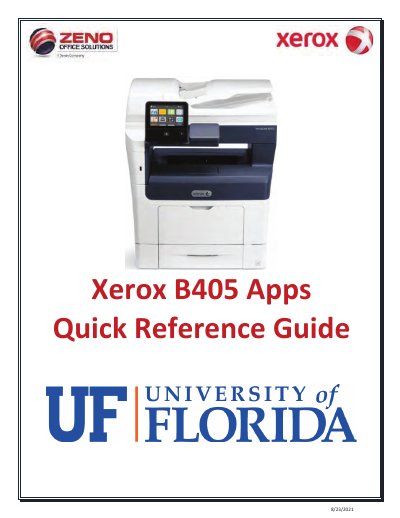
This is an English quick reference guide for the Xerox VersaLink B40x/B405 printer. It explains how to power the printer off and on, describes the control panel and status LED indications, and gives steps for replacing the toner cartridge, drum cartridge, and fuser.
The guide also covers troubleshooting paper path and document feeder jams, plus settings for black-and-white copying, Scan to Email, and basic faxing. Instructions are given as short steps and screen settings lists, with labels on the device for consumable and jam clearance areas.
Press the Power button on the control panel. The device powers up and is ready to print, scan, or copy in Standby Mode.
A flashing blue status LED indicates a user has swiped a card for authentication, the device is powering on, a print, copy, or receive-fax job has completed, or a mobile client is using AirPrint to locate the device.
Replace the consumable. If output quality deteriorates, check the status of the consumables.
Open the front cover, slide up the lever on the right side of the drum cartridge, remove the old toner cartridge, shake the new cartridge left to right at least 10 times, install it with the arrow up, secure the lever, and close the cover.