
User manual for the X99 Android TV box covering power and sleep, opening apps, the setup wizard, Wi-Fi, Ethernet, file browsing and troubleshooting.
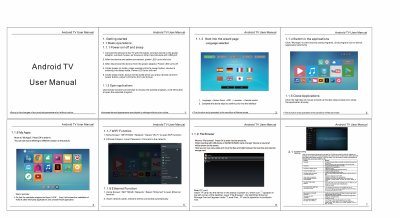
This is the user manual for the X99 Android TV box. It starts with basic operations: connecting the device to a TV with an HD cable and to the power adaptor, attaching a mouse, air mouse or other input device to the USB port, and reading the power LED (blue when on, red in sleep mode). It then explains how to open applications with the remote control's arrow keys and OK button, how to go through the first-time wizard page (language, screen zoom, Wi-Fi, launcher, remote control), and how to switch between recently used programs in "My Apps" or close an application with the right mouse key in mouse mode.
The manual also documents network setup through SETTINGS > Network for Wi-Fi (choose a hotspot and input the password) and Ethernet (insert the network cable and the connection is made automatically), the File Browser for USB drives and SD/SDHC/MMC cards, and how to read a TF card while the device is powered on. A final troubleshooting section with warnings states that the TV box should not be opened or repaired by the user, and lists hints for problems such as no picture, no sound, unresponsive remote control and signal issues.
| Model | X99 |
|---|
Connect the device to the TV with an HD cable, connect the device to the power adaptor, and connect a mouse, air mouse or other input devices to the USB port.
After the device and cables are connected the power LED turns blue; when the remote control's power button is pressed the device enters sleep mode and the LED turns red.
On the Home Screen go to SETTINGS > Network, select "Wi-Fi" to open the Wi-Fi function, choose a hotspot, input the password and connect.
Insert the TF card into the device while it is powered on; when the icon appears in the top left corner of the desktop, open "File Browser" and the External Storage Card will appear.