
Dell OptiPlex 3050 All-in-One Quick Start Guide
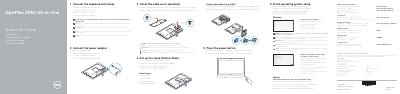
The Dell OptiPlex 3050 All-in-One Quick Start Guide gives setup steps for the computer. It covers setting up an HAS or Easel stand, connecting the power adapter, connecting the keyboard and mouse, installing the optional cable cover, pressing the power button, connecting to a network, and finishing operating system setup.
Page 2 labels the computer features, including the microphone, optional camera, optional optical drive, OSD buttons, hard drive activity light, power button, stereo speakers, USB ports, network port, DisplayPort, power connector port, optional VGA or serial port, cable cover, stand, security cable slot, headset port, and SD card reader. The guide also lists Dell support and contact links and regulatory and safety information.
| Computer model | OptiPlex 3050 All-in-One |
|---|---|
| Regulatory model | W18B |
| Input voltage | 100 V AC–240 V AC |
| Maximum input current | 2.5 A |
| Input frequency | 50 Hz–60 Hz |
| Output current | 6.7 A/9.23 A |
| Output voltage | 19.5 V DC |
Enter the password for the wireless network access when prompted.
No. Securing the cable cover with the Torx screw is optional.
See the documentation that shipped with the wireless keyboard or mouse.
Follow the instructions on the screen to finish setup.