
Dell Vostro 15 5000 Series Notebook Quick Start Guide
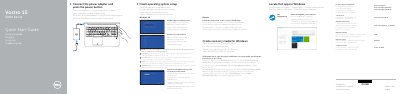
This two-page quick start guide from Dell covers the first steps for the Vostro 15 5000 Series notebook, identified in the document as computer model Vostro 15-5568 (regulatory model P62F, regulatory type P62F001). It explains how to connect the power adapter and press the power button, finish operating system setup for Windows 10 or Ubuntu, connect to a network, sign in to a Microsoft account or create a local account, locate Dell apps such as Dell SupportAssist, and create recovery media for Windows.
The second page illustrates the computer's features, numbered from the microphone and camera through the ports, card reader, fingerprint reader, touchpad and service tag label, and lists the shortcut keys for audio mute, volume, track control, display extension, search, keyboard backlight, brightness, wireless, the power/battery and hard-drive activity light toggle, Fn-key lock and sleep. The text is printed in English, Danish, Finnish, Norwegian and Swedish.
| Computer model | Vostro 15-5568 |
|---|---|
| Regulatory model | P62F (regulatory type P62F001) |
| Video port | HDMI port, VGA port |
| USB ports | USB 3.0 port, USB 3.0 port with PowerShare, USB 2.0 port |
| Card and fingerprint reader | Memory card reader, fingerprint reader |
| Security | Security-cable slot |
Connect the power adapter and press the power button.
In Windows search, type Recovery, click Create a recovery media, and follow the instructions on the screen.
Dell lists support and manuals at Dell.com/support and Dell.com/support/manuals, and contact details at Dell.com/contactdell.